Page 16 of 20
When something goes wrong
What the messages mean and how to get unstuck: errors, read-only, failed builds and locked seeds.
Most problems in AMPLE come with a message that says what is wrong and where. This page lists the ones you meet first, and what to do.
The song is read-only#
At the top of the canvas a yellow banner says Read-only: the song has N errors. Fix them in the source editor. A song with errors cannot be built or changed from the node editor, because AMPLE would not know what you mean.
- Press Back to the editor (or open the Source view).
- Lines with a problem are underlined, with a dot in the margin. Hover over one to read the message.
- Fix all repairs what it can; otherwise change the line yourself and press Apply.
A second kind of read-only is looking at an old revision. The banner then says you are looking at a revision and that nothing can change. Click the banner to leave and go back where you were.
A block says "not built"#
It means that block is out of date or has never been built. Press Build, or Build and play. If it stays "not built" after a build, look at the bar next to Build: a red failed badge means the build stopped on a problem.
The build failed#
- The red badge in the header says how many blocks failed. Click it: the Log opens.
- A red line in the log is a link to the line of the song that the problem belongs to; Show block goes to the block instead. See Build, play and stop.
- Common causes: a file that is not in the project (a sample, a MIDI file, a sequence), a setting out of range, an input that is not connected.
A message mentions a locked seed#
The seed … is locked. Changing it probably makes reproduction of earlier takes impossible; unlock it first. A locked seed keeps a block sounding the same every time. If you want another variation on purpose, unlock the seed first, then change it. If you did not mean to change it, leave it.
Changes you cannot find#
The label next to Save tells where your change is:
| Label | Meaning |
|---|---|
| typing, not applied | You typed in the Source view and did not press Apply yet |
| changed | The song in the editor differs from the saved file |
| (nothing) | What you see is what is saved |
Applying puts the change in the working copy, and Save makes it a revision in the history. If a revision is not what you wanted, Undo or go back in the History tab (Versions).
Names that clash#
AMPLE refuses two blocks with the same name. When you place a bundle or add a block, choose another name or a prefix.
No live checking in the Source view#
If a message says that the language server is not reachable, only the live underlining of problems is off. Applying and building still work, and a problem is shown when you build.
A voice clone says its Python is missing something#
The message names the engine, the setting that chose the Python, and the modules that are missing. Each engine can have its own Python in the plugin settings (voice-clone: pythonXtts, pythonQwen3, pythonChatterbox); an engine setting wins over the general python setting. Point the one of the failing engine at an environment that has its packages. AMPLE never installs packages into, or switches to, another environment by itself.
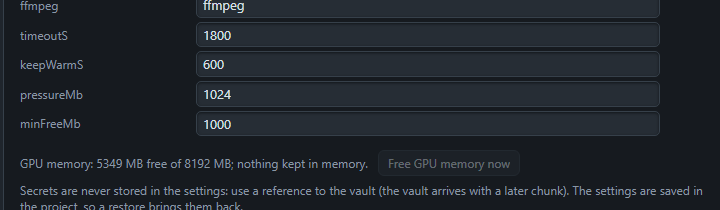
The settings also hold keepWarmS: how many seconds the voice engine stays loaded in memory after a build, so a second build soon after starts faster (0 turns it off). When the graphics card gets full because another program started, AMPLE gives its memory back by itself; Free GPU memory now at the bottom of the plugin settings does it on request.
Still stuck?#
The Log tab keeps the last lines of every build. The reference help (the Help link in the header) has the code of every message, such as AMP5380: look it up there for the longer explanation.
Next: song text by example, in Song text by example.