Page 6 of 20
Drums and patterns
Make a drum beat with steps, name your patterns and string them into sections.
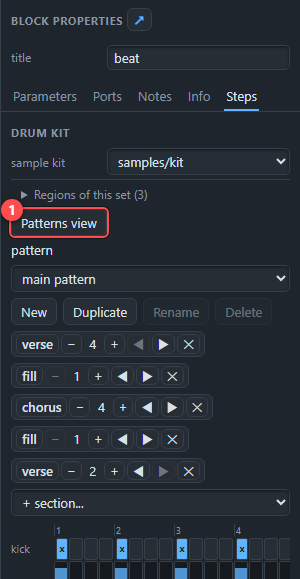
A drum beat in AMPLE is a grid. Each row is a drum (kick, snare, hat), each column is a step, and a click puts a hit on it or takes it away. Select the drums block, open the Steps tab on the right, and the grid is there.
The grid in the text#
A pattern is also text. One row per drum, with x for a hit and . for a rest:
pattern kick:x...x...x...x... snare:....x.......x... hat:x.x.x.x.x.x.x.x.Every row has 16 steps, one bar. The kick above hits on every beat; the snare on beats two and four; the hat on every other step.
| Mark | Means |
|---|---|
x | a normal hit |
X | an accent: harder |
o | a ghost note: very quiet |
. | nothing |
The sound comes from a sample set: a folder with kick.wav, snare.wav and hat.wav. Choose it in the sample kit field, or write kit samples/kit. Without a kit the drums block plays a built-in synthesised drum set, which is handy for sketching.
Several patterns and sections#
One bar of beat gets boring fast. The drums block can keep named patterns and play them one after the other as sections. In the text:
patterns verse=kick:x.......x....... snare:....x.......x... hat:x.x.x.x.x.x.x.x. / fill=kick:xxxxxxxxxxxxxxxx snare:x.x.x.x.xxxxxxxx hat:xxxxxxxxxxxxxxxx
song verse*4 fill chorus*4 fill verse*2
The first line defines the patterns (separated by /). The second is the song of the drum machine: play verse four times, then a fill, then four bars of chorus, and so on. *4 means "this many bars".
In the panel you do not have to type this. The pattern chooser has New, Duplicate, Rename and Delete, and under it the section strip shows one chip per section: change its length with − and +, move it with the arrows, remove it with the cross, or add one with + section.
The Patterns view#
Press the Patterns view button for a bigger grid, with every drum on its own lane and the sections below.
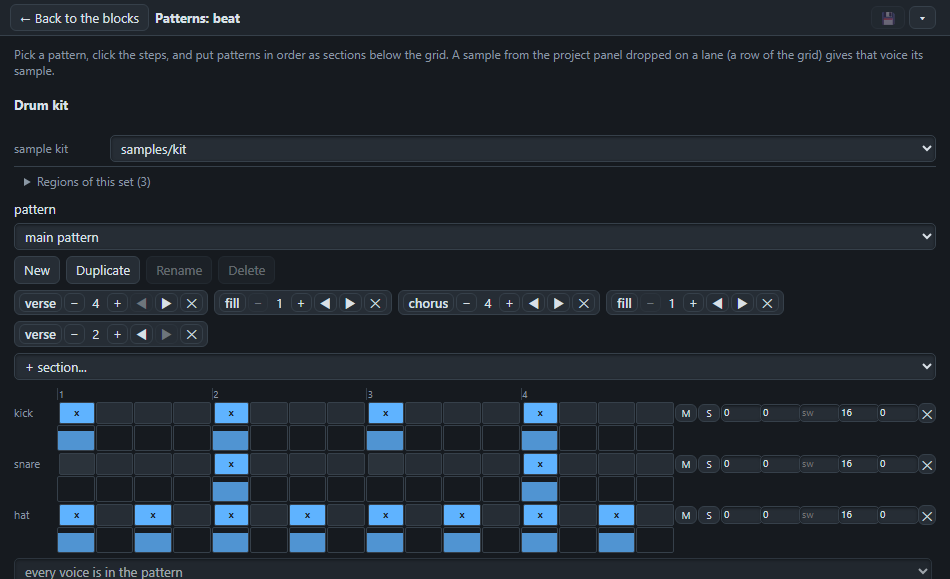
Build, and the whole sequence of sections plays in order.

Next: how files in your project fit together, in Files and the project panel.