Page 4 of 20
Build, play and stop
What the buttons in the header do, and what to do when a build fails.
Three things happen in AMPLE, and they have their own buttons: making the sound (build), listening to it (play) and stopping.

Build#
Build makes the sound of every block that is out of date. A block is out of date when something it depends on has changed since it was last built: its own settings, a sample it reads, or a block that feeds it. Blocks that are not out of date are not made again, so changing the tempo of one block does not rebuild the whole song.
While it builds, the bar shows how far it is and which blocks are busy. Build does not play anything, and it also builds changes that you have not saved yet.
Play#
Play plays the song. If everything is built, it just plays. If something is out of date, the button says Build and play, builds what is missing and then plays. Hover over it to see which blocks were out of date.
The small label next to it tells you what you are hearing: the song, a block, or a file from the project. Loop repeats the sound when it ends; if you chose some bars in the Arrangement, a "Play bars" button plays only those.
Stop#
There is one Stop button. While a build is running it says Cancel build and cancels it: the blocks that were already finished are kept. Otherwise it stops the sound.
| What | Keys |
|---|---|
| Play or stop | Space |
| Build | Ctrl+B |
When a build fails#
Sometimes a block cannot be made, for example because a file it needs is missing. Then:
- The header shows a red badge such as 1 failed.
- The Log tab lists the problem with its code, in red.
- A click on that line opens the Source view, and the line the problem belongs to is underlined in red.

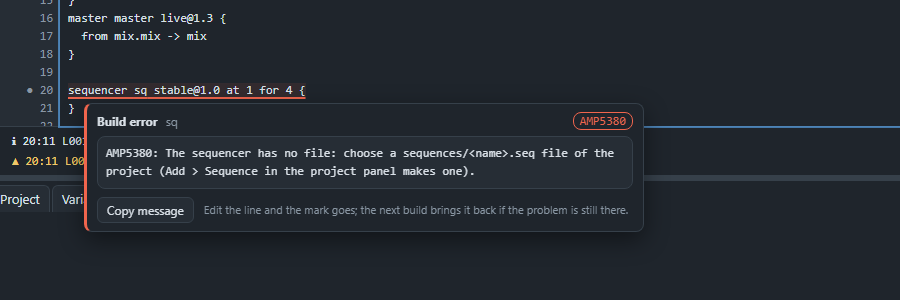
Hover over the underlined line: a card shows the message in text that you can select, with a button to copy it. Fix the problem, and as soon as you change that line the red mark goes away. It comes back at the next build only if the problem is still there.
Seeds, in short#
Some blocks make small "random" choices, such as how hard each drum hit is. Those choices come from a seed. As long as the seed stays the same, a build gives exactly the same sound. The number on the project line, the master seed, gives every block its own seed unless the block has one of its own.
Next: how to keep your work safe and try things out in Versions.