Page 9 of 20
The sequencer
Make a whole song in one block, in the style of a loop-based studio: channels, patterns and a playlist.
If you know programs such as FL Studio, the sequencer block will feel familiar. It is a small studio in one block: you make channels (the sounds), write patterns (what each channel plays), and put the patterns in a playlist (when they play). It is an advanced tool; the node editor and the text stay the main way of working, and this is a roomy place for building a beat or a loop-based song.
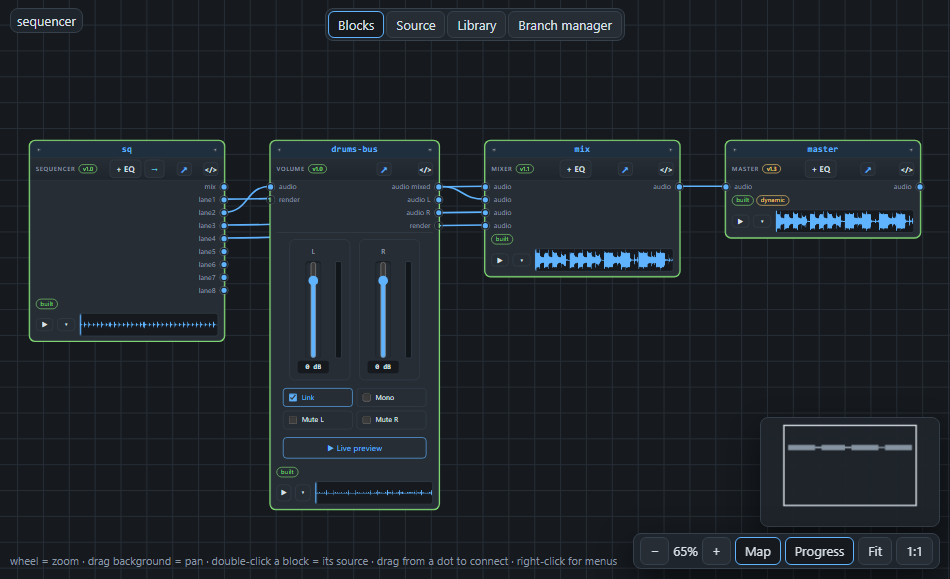
The block has one output called mix, with everything in it, and eight lanes. A lane is an extra output that carries only the channels you choose, so you can send the drums to one place and the bass and lead to another, for example through different effects.
The workspace#
Select the block and press Open the sequencer. A full-screen workspace opens.
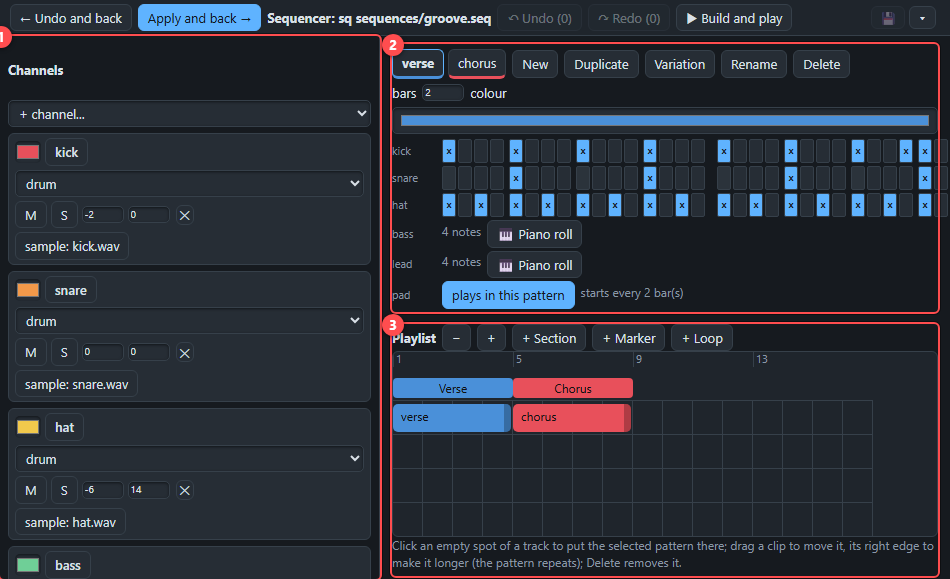
- Channels. Every channel has a name, a colour, a type, a level and a pan, and mute and solo buttons. The types are drum (one sample and a row of steps), loop (an audio file that repeats), notes, bass and piano (notes, played by a built-in tone or by a sample set), guitar (strumming over chords) and gm (notes played by a General MIDI sound).
- Patterns. A tab for each pattern. A drum channel has a row of steps, a notes channel has a piano roll button, a loop has a switch that says whether it plays in this pattern. Variation makes a copy that starts from the same rows, so you change only what differs.
- Playlist. Click an empty spot of a track to put the chosen pattern there, drag a clip to move it, drag its right edge to make it longer (the pattern repeats), and press Delete to remove it. The coloured bands above are sections; flags are markers; a loop repeats a stretch of bars to the end.
Lanes#
Scroll down in the workspace to the lanes.
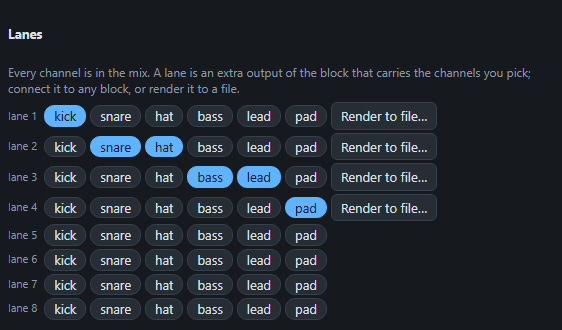
Click a chip to put a channel in a lane or take it out. Back in the graph, connect lane2 to an effect or a mixer input, and only those channels go there.
What it looks like in the text#
The sounds and notes live in a file of the project, sequences/<name>.seq, and the block names it:
sequencer sq stable@1.0 at 1 for 8 {
  file sequences/groove.seq
  lanes lane1=kick lane2=snare+hat lane3=bass+lead lane4=pad
}
The file itself is short text as well:
sequencer 1
channel kick drum sample=samples/kit/kick.wav vol=-2
channel hat drum sample=samples/kit/hat.wav pan=14 vol=-6
pattern verse bars=2
  kick x...x...x...x...|x...x...x..xx...
  hat x.x.x.x.x.x.x.x.
playlist
  clip verse track=1 at=1 for=4
Playing and repeating#
The bar at the top has Play, Stop, Repeat and Live. Drag over the numbers above the playlist to choose some bars: they get a shaded band and play again and again. Click one bar number to start from there. The ⟳ on a section repeats that section; ⟳ Play pattern repeats a pattern. Change something while it plays and AMPLE builds the new version in the background; you hear it when the loop comes round again.
In the song or in a file#
A sequence normally lives in a file of its own (sequences/band.ampleseq). You can also keep it inside the song: press Keep in the song at the top, and the text of the file moves into the sequencer block. The file stays where it is; the block simply stops using it. Extract to a file… does the opposite: it writes the sequence out to a new file and the block uses that file again.
Press Apply and back to write the file and return, or Undo and back to throw away what you changed in the workspace.
Next: reuse your best ideas in other songs, in Library bundles.