Page 7 of 20
Files and the project panel
Find, add, rename and use the files of your project: samples, MIDI, lyrics and more.
A project is a folder, and almost everything in it is a plain file: samples, MIDI, lyrics, chords, notes, and the songs themselves. The Project tab at the bottom of the window is the place to see and manage them.

- The tree on the left chooses the folder. The files of that folder appear as tiles; Details switches to a list with size, date and where each file is used.
- The row of buttons filters by kind (Songs, Audio, MIDI, Lyrics, Modules, Packs), and the search box finds a name in this folder.
- Drag files from your computer onto the panel to add them to the project.
Add something new#
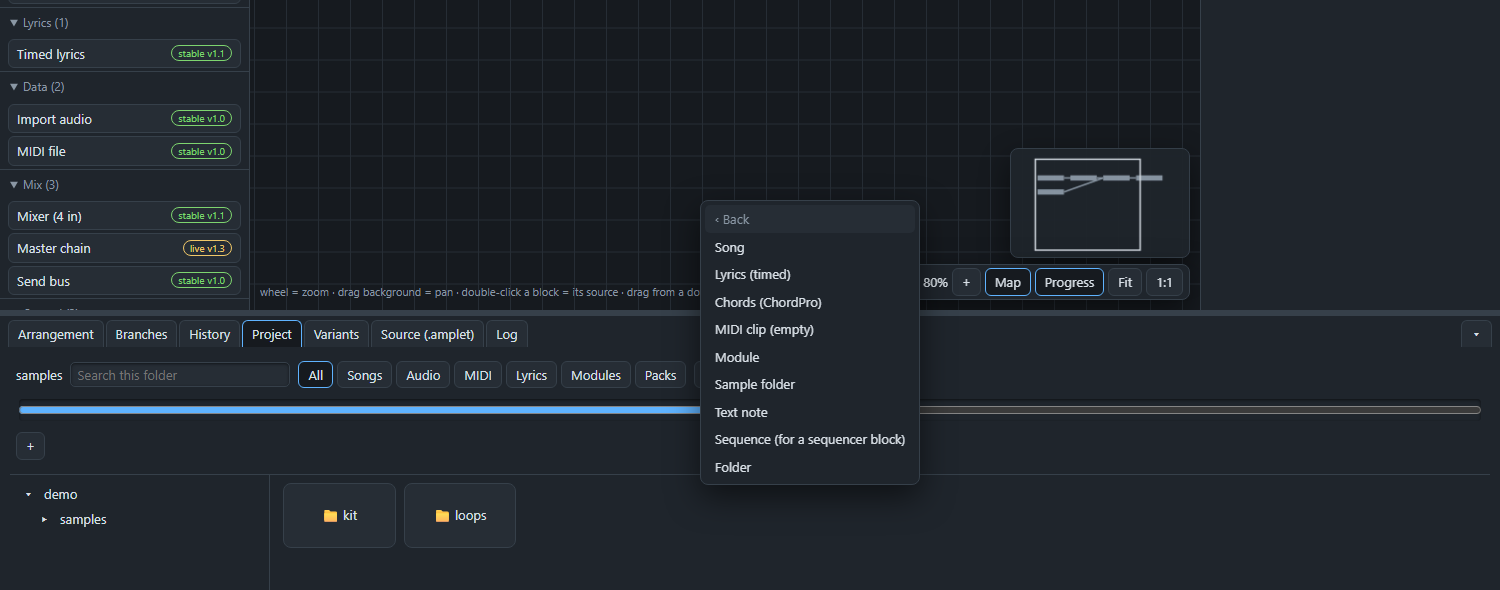
Right-click an empty spot of the panel and choose Add. AMPLE makes the file in the right folder, with the right extension, and opens it.
Use a file in a song#
A file only matters once a block reads it. There are three ways to connect them:
- Right-click the file and choose Use in song: it lists the blocks that can read this kind of file. A WAV file offers New Import audio block and New Sampler block.
- Choose Point a block at it to change the file of a block that already exists.
- Drag the file onto the canvas, or onto a file field in the properties. In the Source view the lines that can take the file light up while you drag.
Renaming is safe#
Rename a file or folder in the project panel and AMPLE finds every line in your songs that names it. It shows you what will change before it does anything:
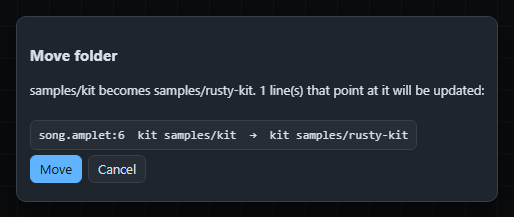
Press Move and the folder and all the lines that name it change together, in one step that you can undo. Under Advanced there is also rename without refactor, which only moves the file and leaves the songs as they are; use it when you know that nothing points at it, or when you want to point things at it yourself.